
Prepare media before charting
WARNING
Before using the tools on this page, open a terminal and run winget install ffmpeg to install FFmpeg.
Adjust the duration
Leave one measure of silence at the start
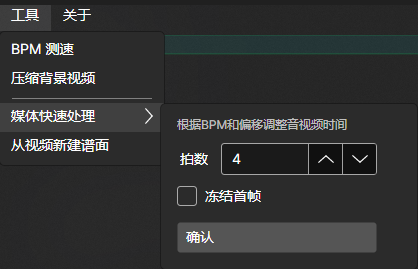
It is generally better to adjust the audio so its first beat begins exactly one measure after the start than to change the chart offset. Use Tools > Quick Media Processing to do this.
First, add (bpm){1}, to the chart so the tool can read the starting BPM. In the waveform below, align the first yellow line with the first beat of the audio. In the panel shown below, enter the number of beats to add and choose whether to freeze the first video frame when extra duration is needed. If this option is off, MajdataX fills the added duration with black frames. Then click Confirm.
This operation may take some time.
TIP
A reliable workflow is:
- If you do not know the BPM, tap along with the BPM Detector shown in the image to get an estimate.
- After finding the BPM, enter a test pattern such as
(bpm){4}1,1,1,1,1,1, ...to verify the BPM and offset. - Run Tools > Quick Media Processing. After processing finishes, delete the test pattern.
Trim a song
MajdataX does not currently include a tool for trimming songs. After downloading a music video, trim it in an audio editor such as ocenaudio. Then open it in MajdataX and add one measure of silence at the start.
Compress a video
As shown above, Tools > Compress Background Video compresses your background video directly. Unless the source video is unusually large, the result should fit below MajdataNet's 20 MB limit.
This operation may take some time.
