
Recording
MajdataPlay supports two recording modes:
| Mode | Platform | Notes |
|---|---|---|
OBSTrigger | Desktop only | Controls OBS recording through the OBS WebSocket, suited to setups that need custom scenes, cameras or overlays |
FFmpeg | Desktop and mobile | Records gameplay video and audio with the built-in FFmpeg and writes to RecordOutputs |
Set the recording mode in Common.RecordMode in system-settings.json. The default is "Disable".
Record with the built-in FFmpeg
- Change
Common.RecordModeinsystem-settings.jsonto"FFmpeg". - Restart the game. An Encoding menu appears in the settings UI.
- In Encoding, set the encoder, frame rate, bitrate and resolution scale; set the container format in
Encoding.ContainerFormatinsystem-settings.json(MP4 by default). - Start playing. Recording starts automatically when the game starts and is saved automatically when you quit the song or the game ends.
The default output is MP4, stored in the RecordOutputs folder under the game data directory, with a file name like SongTitle_Charter_2026-01-01_12_00_00.mp4. If muxing the audio track fails, a video-only .mkv file is kept.
Encoding tips
- On desktop, prefer
Hardware; if the picture is corrupted, recording fails or the driver is unsupported, switch toSoftware. - On mobile, keep
Hardwareand let the system hardware encoder handle it. If the device overheats or drops frames, lowerResolutionScale,FrameRateorBitRate. - When
RateControlModeisVBR, you can setMaximumBitRate; adjust it yourself if the streaming or upload platform has bitrate limits. - Recording consumes GPU, CPU and storage. Check the free space before a long recording.
Mobile
Both Android and iOS can use the FFmpeg mode. Output files are stored in RecordOutputs under the app data directory:
- Android with storage permission granted:
Documents/MajdataPlay/RecordOutputs - Android without storage permission:
Android/data/net.majdata.majdataplay/files/RecordOutputs - iOS:
RecordOutputsin theMajdataPlayfolder
OBSTrigger cannot be used on mobile; that option cannot be selected there.
Record with OBS
The OBS mode is desktop only. This feature works by having Xiaoxiao Lanbai press the record key for you, so configure your scene in OBS first and capture MajdataPlay with Display Capture or Game Capture; other capture modes may fail to record.
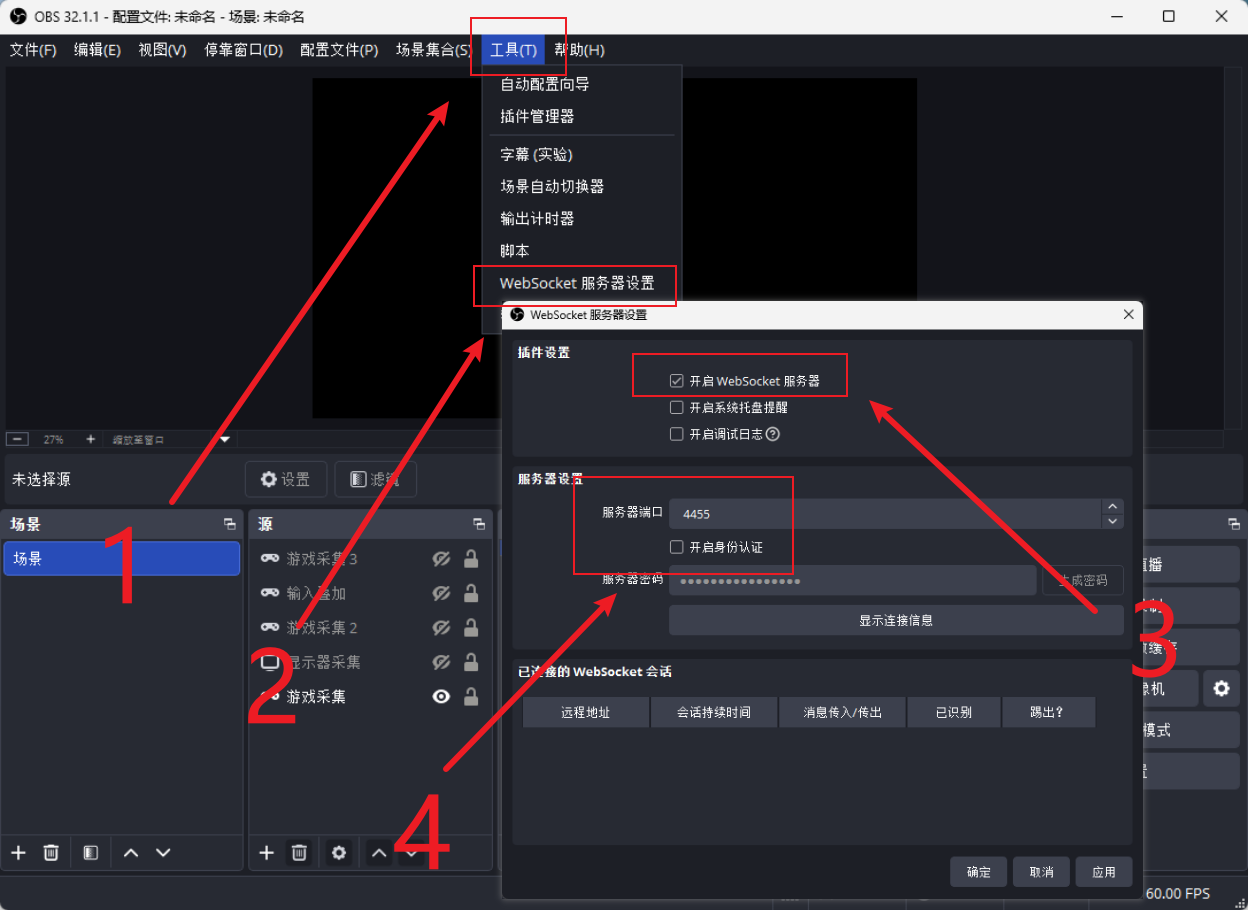
- Select
Toolsat the top - Select
WebSocket Server Settingsfrom the drop-down menu - Check
Enable WebSocket server - Set
Server portto4455and uncheckEnable authentication
Then set Common.RecordMode to "OBSTrigger" in system-settings.json.
Recording status
Once a recording mode is enabled, a camera icon appears below Xiaoxiao Lanbai on the secondary display when you enter gameplay:
- Not connected: the recorder is not ready yet
- Connected: the recorder is ready
- Recording: the current play session is being recorded
TIP
Whether you use OBS or FFmpeg, the recording status icon shows whether the current recorder is connected and whether it is recording.

